|
|
|
| |
|
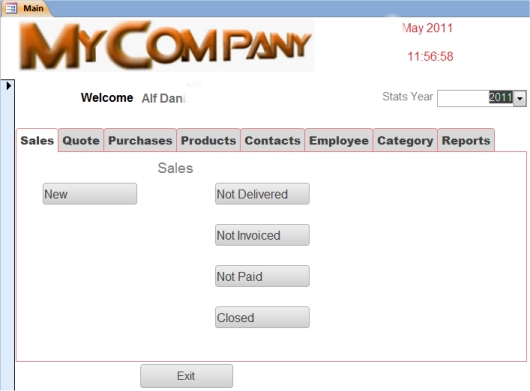
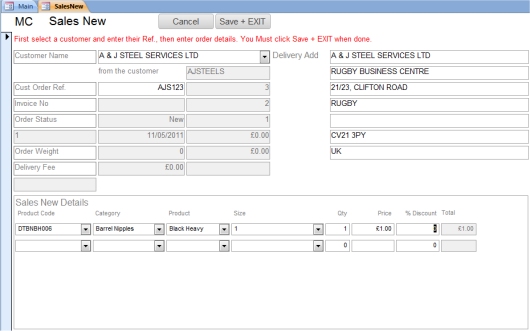
On Clicking New the following screen will be displayed. |
|
|
|
 |
|
After selecting a customer, simple combo boxes allowing you to chose the customer order. |
|
At this point you can change the delivery address if different from the customer address. |
|
After confirming the order it will move to the New Queue. |
|
The stock will be checked against and produce back orders if required. |
|
|
|
 |
|
|
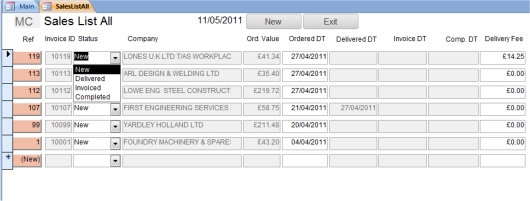
Once in the New Queue you can enter a delivery/shipping fee |
|
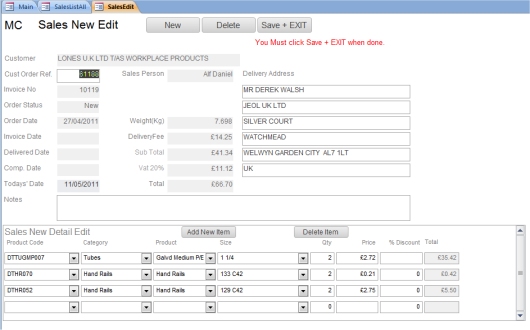
By clicking on the Ref (Order Reference), you will be able to add/edit/delete the order components of delete the order all together. |
|
On deletion the stock will be replenished (put back) |
|
|
|
 |
|
Add/edit/delete will only be allowed when the order status is new. |
|
Customer order reference, delivery can be changed. |
|
The stock will be checked against and produce back orders if required. |
|
Once the order status has been changed from NEW to Delivered, you can then view/print/email the advise note and the invoice. |
|
A notes box is provided for any special instructions which will be printed on the advise note and the invoice |
|
|
|
 |
|
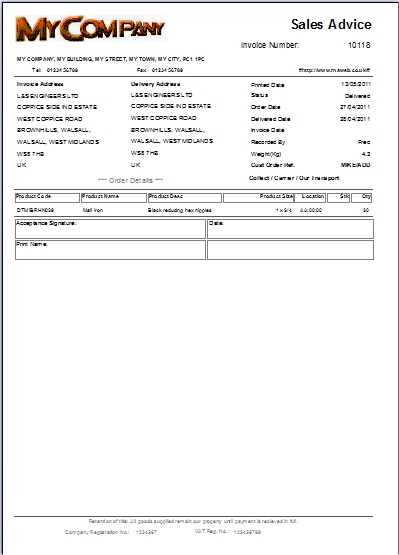
Here is a sample of the sales advice note. |
|
|
|
 |
|
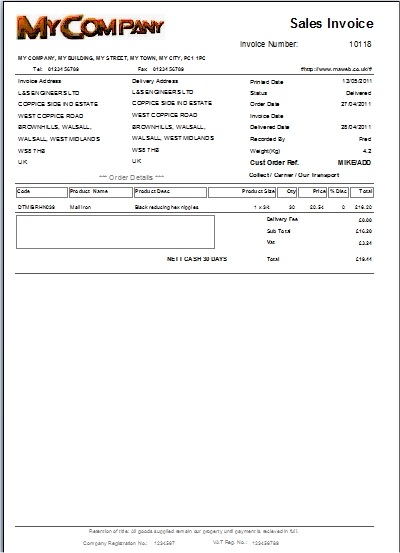
Here is a sample of the invoice. |